

A real, screenshot-by-screenshot setup of free business email on your own domain with Zoho Mail Free, including the exact DNS records, how to test them, and the errors we fixed.
TL;DR: Zoho Mail's Forever Free plan gives you a real business mailbox on your own domain for up to 5 users with 5 GB each.
You verify the domain with one TXT record, create the mailbox, then add 3 MX records, SPF, DKIM and DMARC where your nameservers point.
We set up contact@seoshouts.com this way in about an hour.
The catch: the free plan has no IMAP, POP or ActiveSync, so you read mail in Zoho's web and mobile apps.
We did exactly this for contact@seoshouts.com, and every screenshot below is from that setup.
The guide covers the one check most tutorials skip (where your DNS really lives), the exact records, how to test that mail is authenticated, and the errors we hit along the way.
Last updated: 4 November 2026. Tested on Zoho Mail Forever Free (India data centre) with DNS hosted on Vercel.
What do you need before you start?
You need three things: a domain you already own, login access to the place that hosts the domain's DNS records, and a mobile number for Zoho's OTP check.
Nothing else is required, and no card is needed for the free plan.
The second item trips up most people.
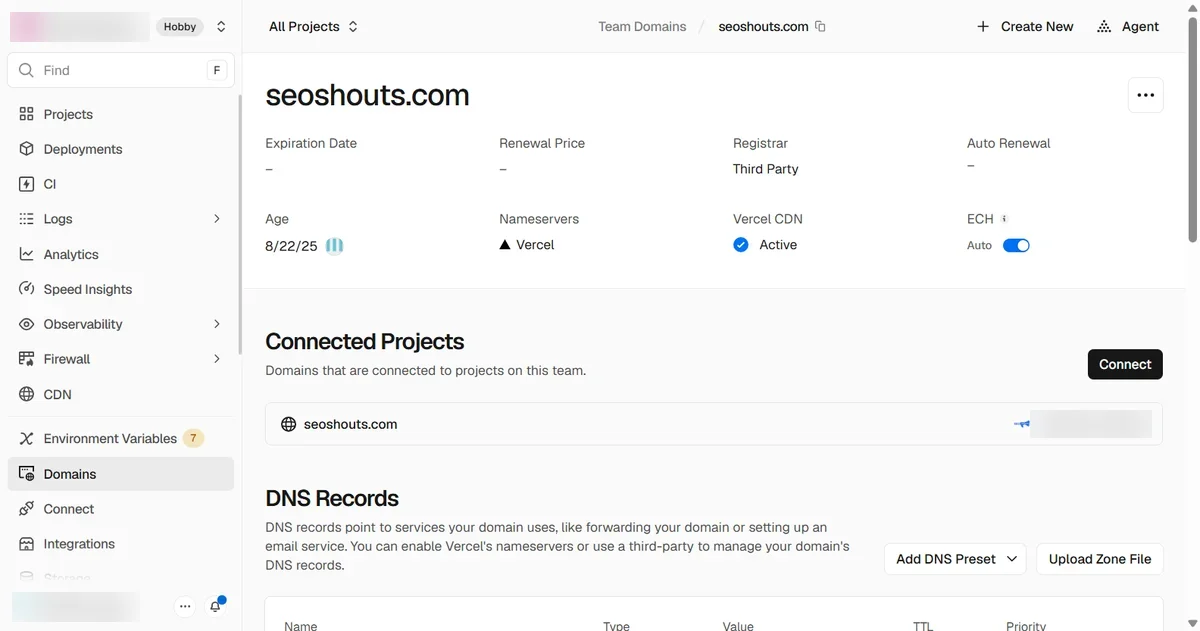
The company where you bought the domain (the registrar) is not always the company that answers DNS for it (the DNS host).
Our domain is registered at Porkbun, but its nameservers point to Vercel, so any record added in Porkbun's DNS tab would simply be ignored.
Check this in 10 seconds before you touch anything:
nslookup -type=NS yourdomain.comOn Mac or Linux, dig NS yourdomain.com +short gives the same answer.
Whatever company appears in the nameserver names is where you add every record in this guide.
| Nameservers look like | Add your DNS records at |
|---|---|
| ns1.vercel-dns.com | Vercel: Domains > your domain > DNS Records |
| ada.ns.cloudflare.com (or similar) | Cloudflare: DNS > Records |
| curitiba.ns.porkbun.com (or similar) | Porkbun: Domain Management > DNS |
| ns51.domaincontrol.com (or similar) | GoDaddy: My Products > DNS |
| dns1.registrar-servers.com (or similar) | Namecheap: Advanced DNS |
Which free domain email option should you pick?
Zoho Mail Free is the only widely used option that gives you a real mailbox (send and receive) on your own domain at no cost.
Forwarding services are free too, but they only pass mail on to another inbox and cannot send as your domain on their free tiers.
| Option | Cost | Real mailbox on your domain | Can send as your domain | Limits |
|---|---|---|---|---|
| Zoho Mail Forever Free | Free | Yes | Yes (web and mobile app) | 1 domain, up to 5 users, 5 GB per user, no IMAP/POP/ActiveSync, select data centres only |
| ImprovMX Free | Free | No (forwarding) | No (0 SMTP sends on Free) | 1 domain, 25 aliases |
| Cloudflare Email Routing | Free | No (forwarding) | No (sending needs Workers Paid) | Forward-only |
| Google Workspace Business Starter | ₹270 per user per month (India, excl. tax) | Yes | Yes | 30 GB pooled per user, 14-day free trial |
Before this setup, seoshouts.com used ImprovMX forwarding into a Gmail inbox.
That works for receiving, but replies leave from a Gmail address unless you configure "Send mail as", and the mail is not stored on your own domain's mailbox.
A real mailbox removes both problems.
Step 1: How do you sign up for the Zoho Mail Forever Free plan?
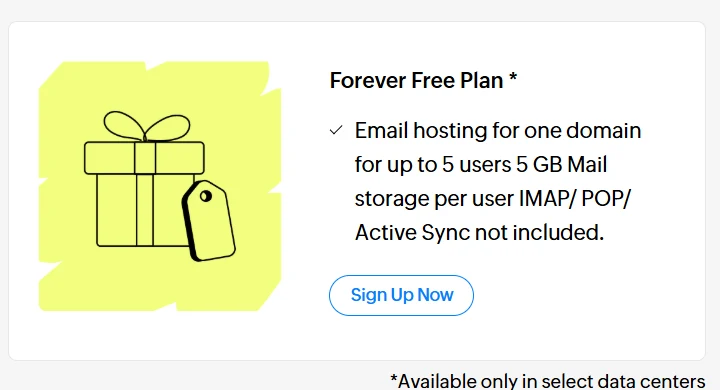
Open the Zoho Mail pricing page, scroll below the paid plans, and click Sign Up Now on the Forever Free Plan card.
The card is placed under the paid editions, so it is easy to miss.
During signup, choose to use a domain you already own, create the admin account, and verify your phone number with the OTP.
Type your password yourself; never paste it into any tool or share it.
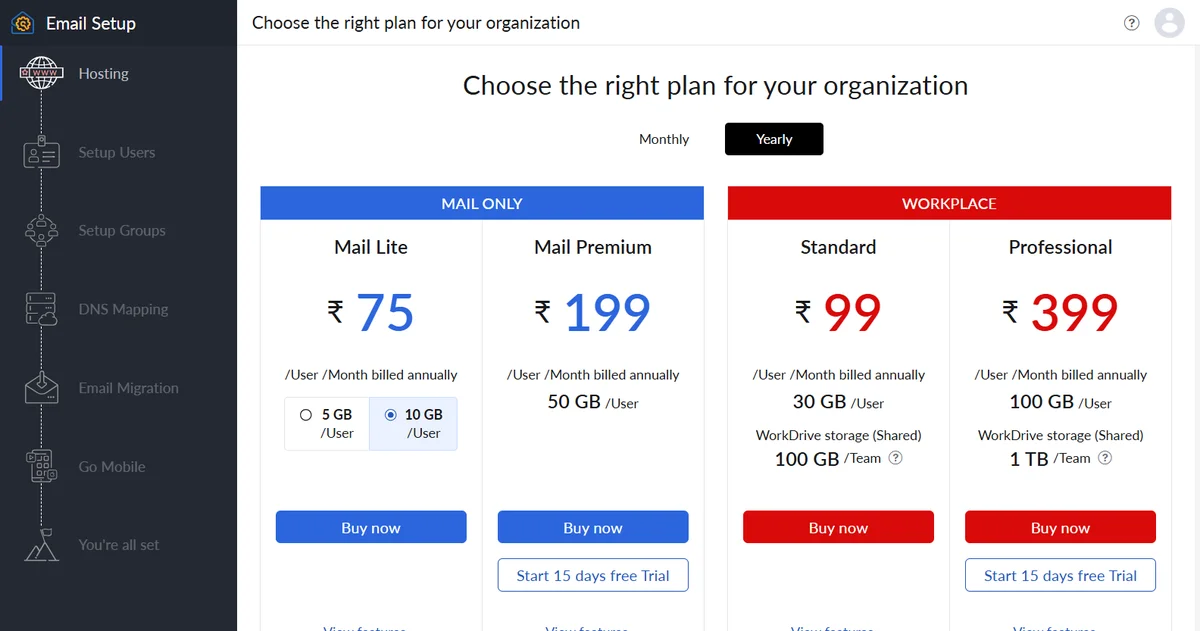
Watch for the paid-plans screen. If you land in the setup wizard from a normal Zoho login, the "Hosting" step can show only Mail Lite, Mail Premium, Standard and Professional, with no free option.
Our admin console kept redirecting to that screen.
The fix was to use the setup link with the free plan in the address (mailadmin.zoho.in/hosting?plan=free for India accounts), which went straight to "Add an existing domain".
Check your data centre. Zoho hosts accounts in regional data centres, and your DNS values depend on it.
Our account was created from India, so the admin console lives at mailadmin.zoho.in and every record uses zoho.in.
Accounts in the US data centre use zoho.com.
Always copy values from your own console, not from a tutorial.
Step 2: How do you verify domain ownership in Zoho?
Zoho verifies ownership with one TXT record.
After you enter your domain, organisation name and industry, Zoho shows a value like zoho-verification=zb12345678.zmverify.zoho.in and asks you to add it at your DNS host.
Add it like this:
| Type | Name / Host | Value | TTL |
|---|---|---|---|
| TXT | @ (or leave blank) | zoho-verification=zbXXXXXXXX.zmverify.zoho.in | 3600 or the lowest allowed |
Vercel and Porkbun both accept a blank name for the root domain; GoDaddy uses @.
Wait a couple of minutes, then click Verify TXT Record in Zoho.
Our record resolved on Google Public DNS within about 20 seconds and verified on the first click.
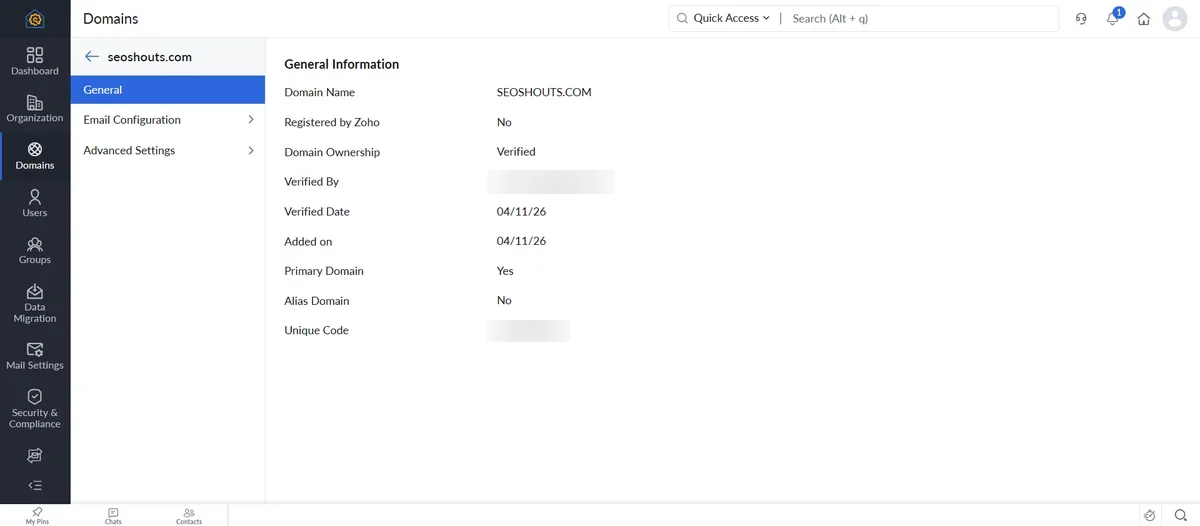
One error we hit before this step: the first "Add now" click returned "You don't have permission to perform this action".
A full page reload opened the Admin Console normally, and adding the domain from Domains > Add worked.
If you see the same message, reload before trying anything else.
Step 3: How do you create the mailbox?
The admin account you signed up with becomes the Super Administrator, but it does not get a mailbox on your domain until you create one.
Go to Users, click Create mail account next to your name, type the part before the @ (we used contact), and click Create.
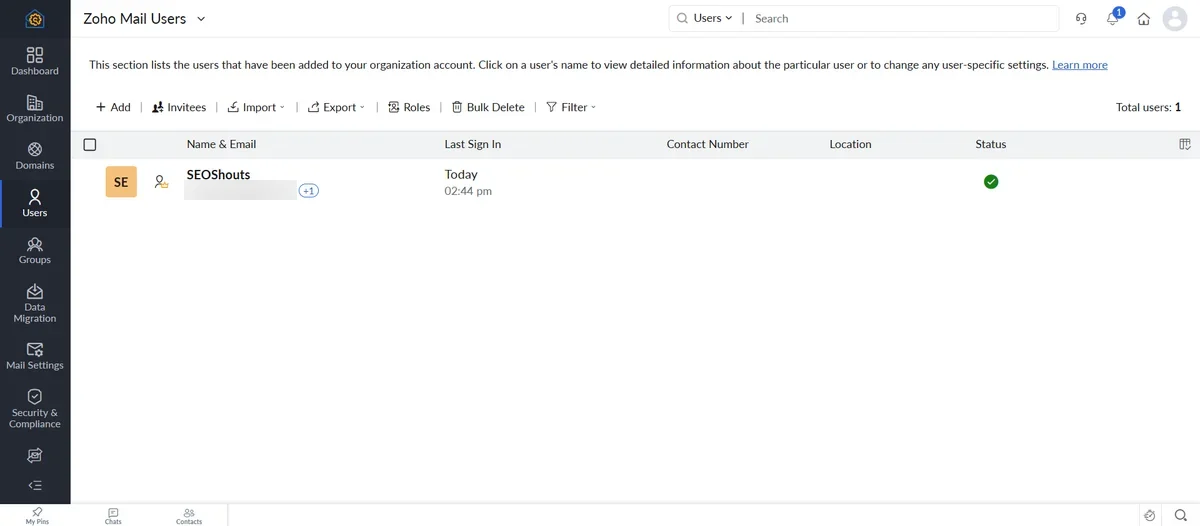
To add colleagues, use Users > Add.
Each user is a full mailbox with its own login, and the free plan allows up to 5 users (Zoho pricing).
For shared addresses such as info@ or support@, a group or an alias saves a user slot.
Step 4: Which DNS records make Zoho Mail work?
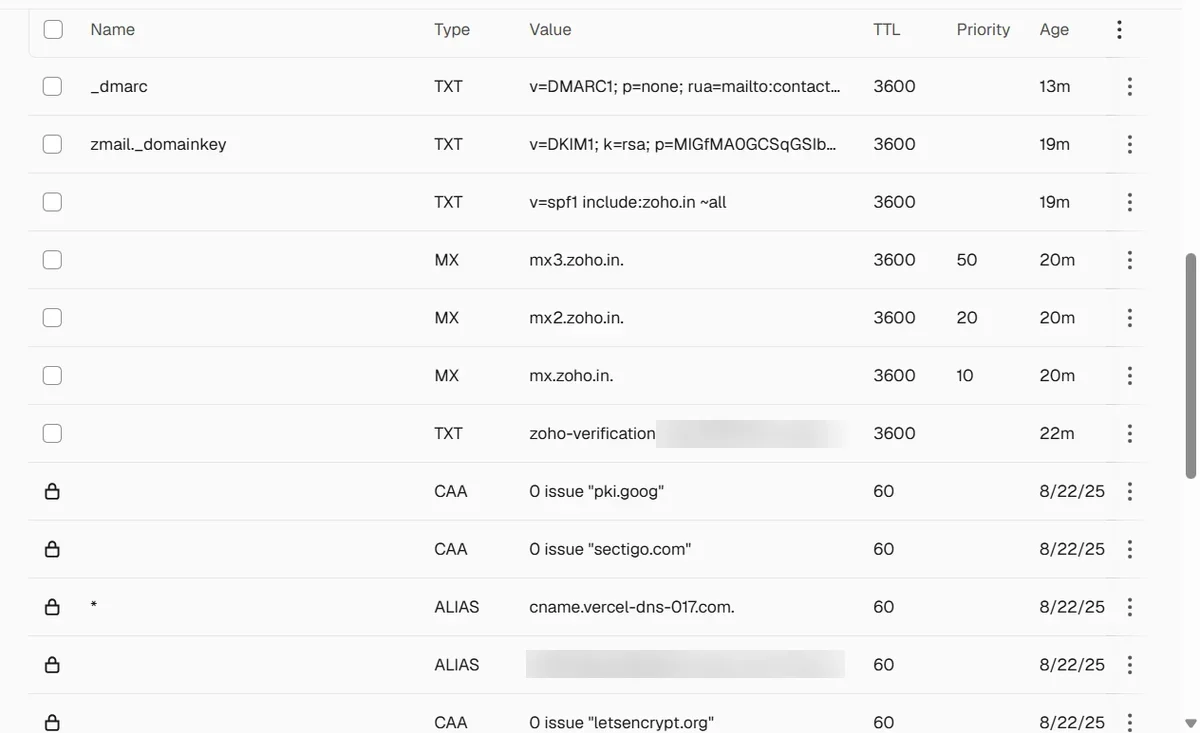
Three record types make mail flow: MX (receive mail), SPF (authorise Zoho to send) and DKIM (sign each message).
Zoho shows all three on the DNS Mapping step.
These are the exact values from our India data centre account:
| Type | Name / Host | Value | Priority |
|---|---|---|---|
| MX | @ | mx.zoho.in | 10 |
| MX | @ | mx2.zoho.in | 20 |
| MX | @ | mx3.zoho.in | 50 |
| TXT (SPF) | @ | v=spf1 include:zoho.in ~all | n/a |
| TXT (DKIM) | zmail._domainkey | v=DKIM1; k=rsa; p=(long key from Zoho) | n/a |
Delete old MX records first. Zoho's MX guide tells you to remove existing MX entries, especially ones with a low priority number such as 0 or 5, because they can pull mail away from Zoho.
Default forwarding MX records from GoDaddy, Namecheap or a web host are the usual leftovers.
Our domain had no MX records left after ImprovMX was removed, so there was nothing to delete.
Keep a single SPF record. Zoho's SPF help page states there should be only one SPF record per domain.
If you already send from another service, merge them into one line, for example v=spf1 include:zoho.in include:_spf.example-sender.com ~all, instead of adding a second record.
Copy the DKIM key in one piece. The DKIM value is about 230 characters long.
Copy it with Zoho's copy button rather than selecting text, because a missing character breaks the signature.
The selector name (zmail for us) becomes the start of the record name: zmail._domainkey.
Zoho generated a 1024-bit key for us, which meets the minimum in Gmail's sender guidelines; Google recommends 2048-bit keys.
Step 5: Should you add a DMARC record?
Yes.
DMARC tells receiving servers what to do when a message fails SPF and DKIM, and sends you reports.
Gmail requires it from bulk senders (more than 5,000 messages a day to Gmail accounts), and a policy of p=none is accepted (Google).
Start with a monitoring-only record:
| Type | Name / Host | Value |
|---|---|---|
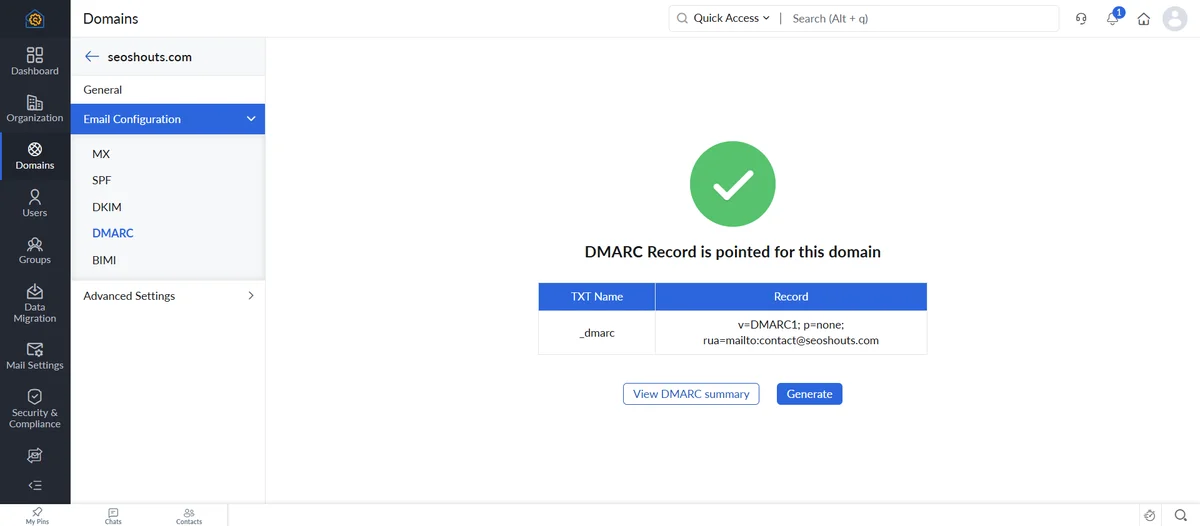
| TXT | _dmarc | v=DMARC1; p=none; rua=mailto:contact@yourdomain.com |
p=none blocks nothing.
After a few weeks of clean reports, you can move to p=quarantine.
Zoho shows the record it finds under Domains > Email Configuration > DMARC, and ours appeared there within the hour.
Step 6: How do you verify MX, SPF and DKIM in Zoho?
Go to Domains > your domain > Email Configuration and click Verify on the MX, SPF and DKIM tabs.
Each one should show a green check.
Zoho notes that DNS changes can take 12 to 24 hours to take effect, depending on TTL (Zoho).
In our case SPF went green on the first click, while MX and DKIM stayed red even though the records were already live.
Checking the DNS host's own nameserver confirmed the records were correct:
nslookup -type=MX yourdomain.com ns1.vercel-dns.com
nslookup -type=TXT zmail._domainkey.yourdomain.com ns1.vercel-dns.com
About 20 minutes later, the same Verify button turned both green.
If your host's nameserver returns the right values, the problem is caching, not your records.
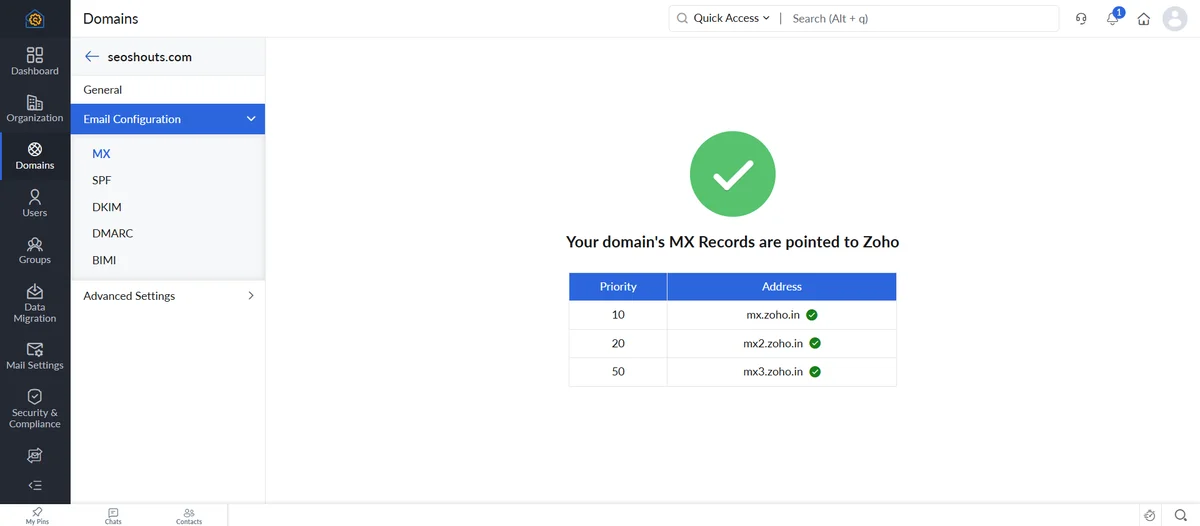
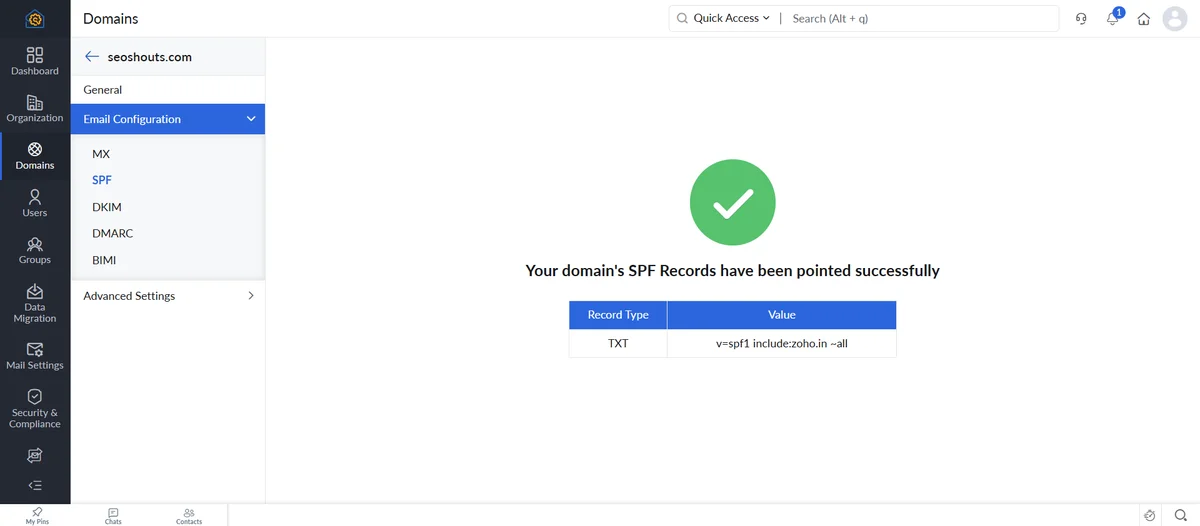
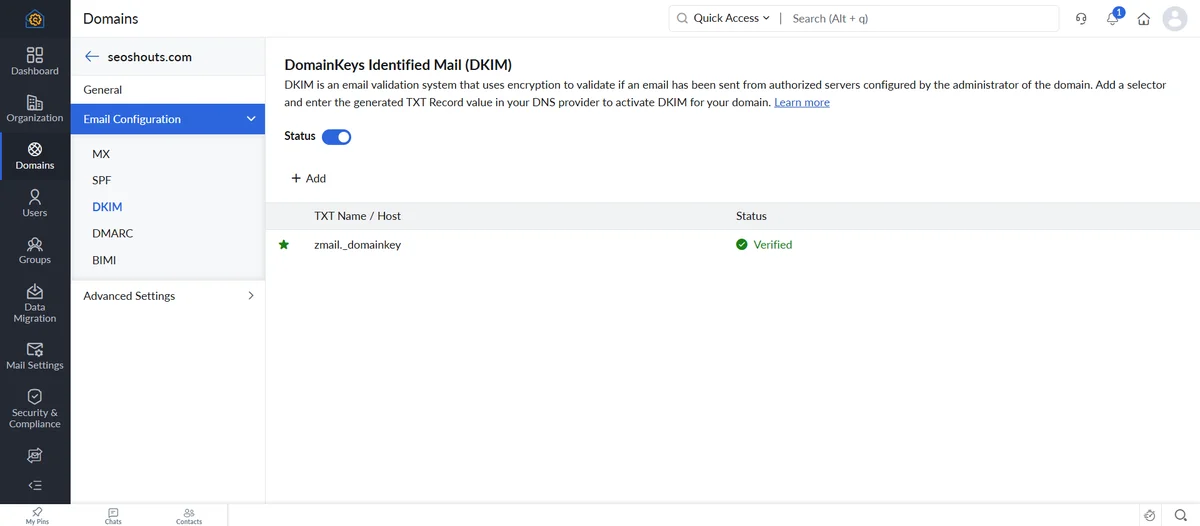
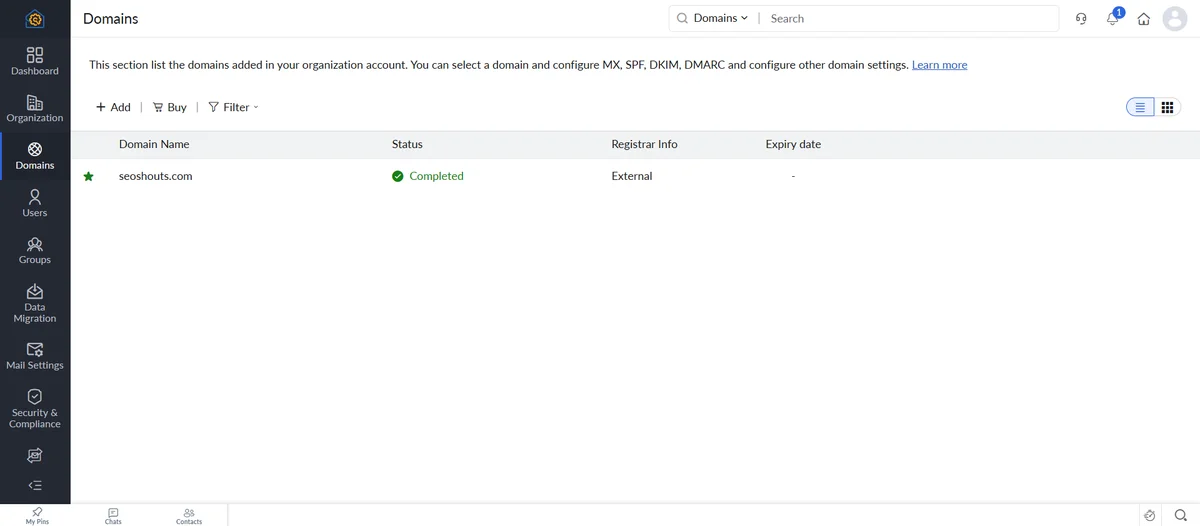
When all three pass, the Domains list changes the status to Completed.
Step 7: How do you test that your domain email works?
Send one email each way and read the authentication results.
A green check in Zoho only proves the records exist; a real message proves they work.
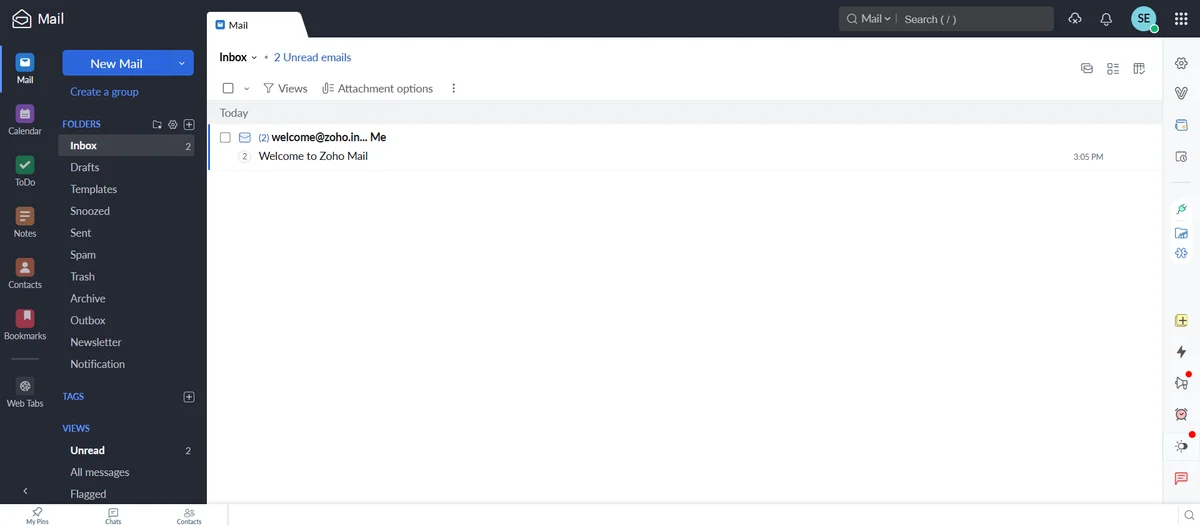
- From a personal Gmail account, send a message to your new address. It should arrive in the Zoho inbox at mail.zoho.in (or mail.zoho.com).
- Reply from Zoho. Check that the reply lands in Gmail's Inbox, not Spam.
- In Gmail, open the reply, click the three-dot menu, then Show original. SPF, DKIM and DMARC should each say PASS.
If SPF fails, look for a second SPF record or a typo in the include.
If DKIM fails, the key was usually truncated when copied.
If mail does not arrive at all, an old MX record is still taking it somewhere else.
What are the limits of the Zoho Mail Free plan?
The free plan covers 1 domain, up to 5 users and 5 GB of storage per user, and it does not include IMAP, POP or ActiveSync (Zoho pricing).
That last point decides how you use it day to day.
| You want to | Works on Free? | What to do |
|---|---|---|
| Read and send mail in a browser | Yes | Zoho Mail web app |
| Read and send on your phone | Yes | Zoho Mail app (Android, iOS) |
| Use Outlook, Apple Mail, Thunderbird or iPhone Mail | No | Needs IMAP/POP; paid Mail Lite plan |
| Send website contact-form mail through Zoho SMTP | No | Send through Gmail SMTP with an app password or a transactional service such as Brevo, delivered to your Zoho address |
| Add a second domain | No | One domain per free organisation |
Website contact forms. Since the free plan has no SMTP access, point your form's "send to" address at the Zoho mailbox and let a different service do the sending.
A common setup is a Gmail account with 2-Step Verification and an app password (SMTP host smtp.gmail.com, port 465), or a transactional email service.
Store the password as a secret environment variable, never in your code.
Why does a domain email matter for SEO and AI search?
A domain email is part of your business identity, and search engines and AI assistants read that identity from many places at once.
Consistent details help them connect your website, your Google Business Profile, your directory listings and your outreach to one entity.
Three practical places to use it after setup:
- Organization schema. Add the address as
emailor inside acontactPointin your Organization markup. Our free schema markup generator builds the JSON-LD for you. - Contact page, footer and listings. Use the same address everywhere. Mismatched contact details across listings are a standard check in a local SEO audit.
- Outreach. Link building and PR pitches sent from a domain address read as more credible than a free webmail address. Our link building outreach templates assume you send from your own domain.
To see whether AI engines can read your business details clearly, run your homepage through the GEO and AEO readiness checker.
Terms such as SPF, DKIM and DMARC are also explained in our SEO glossary.
Troubleshooting: what went wrong in our setup and how we fixed it
Every problem below happened during the seoshouts.com setup on 4 November 2026.
Each fix took under five minutes once the cause was clear.
| Problem we saw | Cause | Fix |
|---|---|---|
| Setup wizard showed only paid plans | Entered setup without the free plan selected | Use the Forever Free "Sign Up Now" link, or the setup URL with ?plan=free |
| "You don't have permission to perform this action" on Add domain | Stale setup page state | Reload the page, then add the domain from Domains > Add |
| Records added at the registrar had no effect | Nameservers pointed to another DNS host (Vercel) | Check NS records first; add records where the nameservers point |
| MX and DKIM red in Zoho while live in DNS | Zoho's checker reading a cached answer | Confirm with nslookup against your DNS host, wait about 20 minutes, verify again |
| SPF green but MX red | Normal during propagation; each record is checked separately | Verify each tab again later |
Frequently asked questions
Is Zoho Mail really free for a custom domain?
Yes.
Zoho Mail's Forever Free plan hosts email for one domain you already own, for up to 5 users with 5 GB of storage each.
You pay only for the domain name itself.
The plan is offered only in select data centres, and IMAP, POP and ActiveSync are not included.
How long does Zoho Mail domain verification take?
Domain verification can pass within minutes once the TXT record is live.
Zoho says DNS changes can take 12 to 24 hours depending on TTL.
In our setup the TXT record verified within a few minutes of adding it, and MX and DKIM turned green in Zoho roughly 20 minutes later.
Why does Zoho show my MX records as not pointed when they are already live?
Zoho's checker can read a cached answer from before you added the records.
Confirm the records on your DNS host's nameserver with nslookup or dig.
If they show the Zoho values, wait 15 to 30 minutes and click Verify again.
Can I use Outlook or the iPhone Mail app with Zoho Mail Free?
No. The Forever Free plan does not include IMAP, POP or ActiveSync, so desktop clients and the built-in iPhone Mail app cannot connect.
You read and send mail in the Zoho Mail web app or the Zoho Mail mobile app.
Should I use mx.zoho.com or mx.zoho.in?
Use the values your own Zoho Admin Console shows.
Accounts created from India are usually hosted in Zoho's India data centre and get mx.zoho.in, mx2.zoho.in and mx3.zoho.in.
Accounts in the US data centre get the .com versions.
Do I need a DMARC record for a small business domain?
It is strongly recommended.
Gmail requires DMARC from bulk senders that send more than 5,000 messages a day to Gmail accounts, and a policy of p=none is accepted.
A p=none record costs nothing, does not block any mail and sends you reports on who is sending as your domain.
Get More SEO Insights
Join 10,000+ marketers receiving weekly SEO strategies and tips directly in their inbox.

